Introduction
Modern web applications are no longer simple HTML pages. They are complex systems with frontends, APIs, authentication, background jobs, cloud infrastructure and many third-party integrations. A single button click can trigger several HTTP requests, update the UI, call a backend service, write to a database and publish an event.
That is why manual testing is not enough.
If your team builds business-critical software, especially systems for enterprise, manufacturing, logistics, finance or industrial automation, you need automated browser tests that prove the application works from the user’s point of view.
This is where Playwright testing in C# becomes very useful.
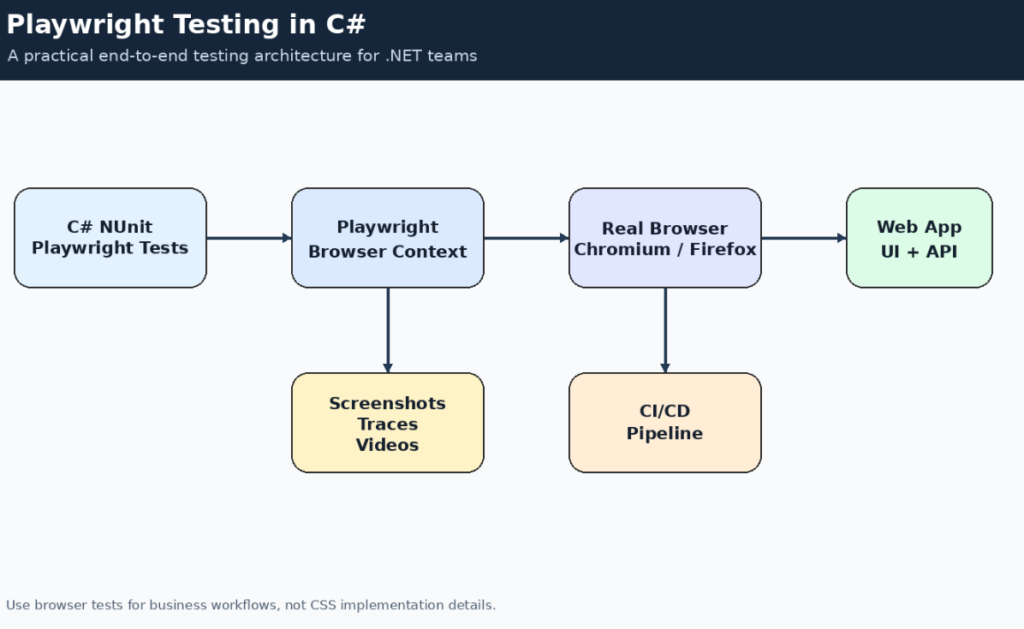
Playwright is a modern end-to-end testing framework that can automate Chromium, Firefox and WebKit browsers. The official .NET version supports common C# test frameworks such as NUnit, MSTest, xUnit and xUnit v3. It also provides browser isolation, tracing, screenshots and API testing support.
In this article, we will build Playwright tests in C# step by step.
You will learn:
- how to create a Playwright test project,
- how to install browsers,
- how to write your first test,
- how to use reliable locators,
- how to test forms,
- how to use Page Object Model,
- how to take screenshots,
- how to record traces,
- how to test APIs,
- how to prepare tests for CI/CD.
Why Use Playwright with C#?
Many .NET teams already use C# for backend development, APIs, domain logic, integration tests and unit tests. Adding browser automation in the same language gives several benefits.
First, your developers do not need to switch to JavaScript or TypeScript only to write UI tests. They can stay inside the .NET ecosystem.
Second, Playwright works well with existing test frameworks. You can use NUnit, MSTest or xUnit depending on your current company standard. The Playwright .NET documentation provides base classes for these frameworks, so tests can get a ready-to-use Page object without writing all browser setup manually.
Third, Playwright was designed for modern web applications. It automatically waits for elements, supports strong locators, works with single-page applications and helps debug failures with traces.
For a software company, this means fewer production bugs, faster releases and more confidence during refactoring.
Step 1: Create a New Test Project
Let’s start with NUnit because it is simple and widely used in .NET projects.
Open a terminal and create a test project:
mkdir PlaywrightCSharpTests
cd PlaywrightCSharpTests

dotnet new nunit -n PlaywrightCSharpTests
cd PlaywrightCSharpTestsNow install Playwright for NUnit:
dotnet add package Microsoft.Playwright.NUnitBuild the project:
dotnet buildAfter installing the package, install the required browser binaries:
pwsh bin/Debug/net8.0/playwright.ps1 installIf you use Linux or CI, the path may be different depending on the target framework and build configuration.
For example:
pwsh bin/Debug/net9.0/playwright.ps1 installA typical project structure may look like this:
PlaywrightCSharpTests/
│
├── Tests/
│   ├── HomePageTests.cs
│   ├── LoginTests.cs
│   └── CheckoutTests.cs
│
├── Pages/
│   ├── HomePage.cs
│   ├── LoginPage.cs
│   └── CheckoutPage.cs
│
├── TestData/
│   └── Users.cs
│
└── PlaywrightCSharpTests.csproj
This structure is simple, but scalable enough for real projects.
Step 2: Write Your First Playwright Test in C#
Create a file called HomePageTests.cs.
using Microsoft.Playwright;
using Microsoft.Playwright.NUnit;

namespace PlaywrightCSharpTests.Tests;

public class HomePageTests : PageTest
{
    [Test]
    public async Task HomePage_Should_Have_Correct_Title()
    {
        await Page.GotoAsync("https://example.com");

        await Expect(Page).ToHaveTitleAsync("Example Domain");
    }
}This test does three things:
- Opens the browser page.
- Navigates to
https://example.com. - Verifies the page title.
PageTest is a Playwright base class. It gives you the Page property automatically. Each test gets an isolated page and browser context, which means tests do not share cookies, local storage or session data by default. Playwright documents this as test isolation through a fresh browser context per test.
Run the test:
dotnet testIf everything is configured correctly, the test should pass.
Step 3: Open a Real Application
Now let’s test a more realistic application.
Assume we have a web application running locally:
https://localhost:5001Create a test:
using Microsoft.Playwright.NUnit;

namespace PlaywrightCSharpTests.Tests;

public class LocalApplicationTests : PageTest
{
    [Test]
    public async Task Application_Should_Open_Home_Page()
    {
        await Page.GotoAsync("https://localhost:5001");

        await Expect(Page.GetByRole(AriaRole.Heading, new()
        {
            Name = "Dashboard"
        })).ToBeVisibleAsync();
    }
}The important part is this:
Page.GetByRole(AriaRole.Heading, new() { Name = "Dashboard" })This locator searches for a heading visible to the user. It is usually better than selecting elements by CSS classes because CSS classes often change during redesigns.
Step 4: Use Good Locators
Bad locator:
await Page.Locator(".btn.btn-primary.mt-2").ClickAsync();Better locator:
await Page.GetByRole(AriaRole.Button, new()
{
    Name = "Save"
}).ClickAsync();Another good option is a test id.
HTML:
<button data-testid="save-order-button">
    Save order
</button>C# test:
await Page.GetByTestId("save-order-button").ClickAsync();Playwright’s test generator also tries to create resilient locators, prioritizing role, text and test id locators.
In business applications, this is extremely important. Tests should fail when the business flow is broken, not when someone renames a CSS class.
Step 5: Test a Login Form
Let’s assume we have a login page:
https://localhost:5001/loginThe page has:
- Email input
- Password input
- Login button
- Dashboard heading after successful login
Test:
using Microsoft.Playwright.NUnit;

namespace PlaywrightCSharpTests.Tests;

public class LoginTests : PageTest
{
    [Test]
    public async Task User_Should_Login_With_Valid_Credentials()
    {
        await Page.GotoAsync("https://localhost:5001/login");

        await Page.GetByLabel("Email").FillAsync("admin@company.com");
        await Page.GetByLabel("Password").FillAsync("Password123!");
        await Page.GetByRole(AriaRole.Button, new()
        {
            Name = "Log in"
        }).ClickAsync();

        await Expect(Page.GetByRole(AriaRole.Heading, new()
        {
            Name = "Dashboard"
        })).ToBeVisibleAsync();
    }
}This is already a useful end-to-end test. It checks if the login page works from the user’s perspective.
But we can improve it.
Step 6: Avoid Hardcoded Test Data
Create a file:
namespace PlaywrightCSharpTests.TestData;

public static class TestUsers
{
    public const string AdminEmail = "admin@company.com";
    public const string AdminPassword = "Password123!";
}Now update the test:
using Microsoft.Playwright.NUnit;
using PlaywrightCSharpTests.TestData;

namespace PlaywrightCSharpTests.Tests;

public class LoginTests : PageTest
{
    [Test]
    public async Task User_Should_Login_With_Valid_Credentials()
    {
        await Page.GotoAsync("https://localhost:5001/login");

        await Page.GetByLabel("Email").FillAsync(TestUsers.AdminEmail);
        await Page.GetByLabel("Password").FillAsync(TestUsers.AdminPassword);

        await Page.GetByRole(AriaRole.Button, new()
        {
            Name = "Log in"
        }).ClickAsync();

        await Expect(Page.GetByRole(AriaRole.Heading, new()
        {
            Name = "Dashboard"
        })).ToBeVisibleAsync();
    }
}In real projects, do not store production passwords in code. Use environment variables or a secure secret store.
Example:
public static class TestConfiguration
{
    public static string BaseUrl =>
        Environment.GetEnvironmentVariable("APP_BASE_URL")
        ?? "https://localhost:5001";

    public static string AdminEmail =>
        Environment.GetEnvironmentVariable("TEST_ADMIN_EMAIL")
        ?? "admin@company.com";

    public static string AdminPassword =>
        Environment.GetEnvironmentVariable("TEST_ADMIN_PASSWORD")
        ?? "Password123!";
}Usage:
await Page.GotoAsync($"{TestConfiguration.BaseUrl}/login");

await Page.GetByLabel("Email").FillAsync(TestConfiguration.AdminEmail);
await Page.GetByLabel("Password").FillAsync(TestConfiguration.AdminPassword);
Step 7: Create a Page Object Model
As the test suite grows, direct selectors inside test methods become difficult to maintain.
Instead, create Page Object classes.
Pages/LoginPage.csusing Microsoft.Playwright;
namespace PlaywrightCSharpTests.Pages;
public class LoginPage
{
private readonly IPage _page;
public LoginPage(IPage page)
{
_page = page;
}
public async Task OpenAsync(string baseUrl)
{
await _page.GotoAsync($"{baseUrl}/login");
}
public async Task FillEmailAsync(string email)
{
await _page.GetByLabel("Email").FillAsync(email);
}
public async Task FillPasswordAsync(string password)
{
await _page.GetByLabel("Password").FillAsync(password);
}
public async Task SubmitAsync()
{
await _page.GetByRole(AriaRole.Button, new()
{
Name = "Log in"
}).ClickAsync();
}
public async Task LoginAsync(string baseUrl, string email, string password)
{
await OpenAsync(baseUrl);
await FillEmailAsync(email);
await FillPasswordAsync(password);
await SubmitAsync();
}
}Now the test becomes cleaner:
using Microsoft.Playwright.NUnit;
using PlaywrightCSharpTests.Pages;

namespace PlaywrightCSharpTests.Tests;

public class LoginWithPageObjectTests : PageTest
{
    [Test]
    public async Task User_Should_Login_With_Page_Object()
    {
        var loginPage = new LoginPage(Page);

        await loginPage.LoginAsync(
            "https://localhost:5001",
            "admin@company.com",
            "Password123!");

        await Expect(Page.GetByRole(AriaRole.Heading, new()
        {
            Name = "Dashboard"
        })).ToBeVisibleAsync();
    }
}Page Object Model is not required for every test, but it is very useful in commercial projects. It makes the test suite easier to read, easier to change and easier to scale.
Playwright also documents Page Object Models as a common approach to structuring large test suites.
Step 8: Test Validation Errors
A professional test suite should not only test happy paths. It should also test validation and error handling.
Example:
using Microsoft.Playwright.NUnit;

namespace PlaywrightCSharpTests.Tests;

public class LoginValidationTests : PageTest
{
    [Test]
    public async Task Login_Should_Show_Error_When_Email_Is_Missing()
    {
        await Page.GotoAsync("https://localhost:5001/login");

        await Page.GetByLabel("Password").FillAsync("Password123!");

        await Page.GetByRole(AriaRole.Button, new()
        {
            Name = "Log in"
        }).ClickAsync();

        await Expect(Page.GetByText("Email is required")).ToBeVisibleAsync();
    }

    [Test]
    public async Task Login_Should_Show_Error_When_Password_Is_Missing()
    {
        await Page.GotoAsync("https://localhost:5001/login");

        await Page.GetByLabel("Email").FillAsync("admin@company.com");

        await Page.GetByRole(AriaRole.Button, new()
        {
            Name = "Log in"
        }).ClickAsync();

        await Expect(Page.GetByText("Password is required")).ToBeVisibleAsync();
    }
}This type of testing protects your application against regressions in forms, validation messages and user experience.
Step 9: Test a Business Workflow
Let’s test a more business-oriented flow: creating an order.
using Microsoft.Playwright.NUnit;

namespace PlaywrightCSharpTests.Tests;

public class OrderTests : PageTest
{
    [Test]
    public async Task User_Should_Create_New_Order()
    {
        await Page.GotoAsync("https://localhost:5001/login");

        await Page.GetByLabel("Email").FillAsync("admin@company.com");
        await Page.GetByLabel("Password").FillAsync("Password123!");
        await Page.GetByRole(AriaRole.Button, new()
        {
            Name = "Log in"
        }).ClickAsync();

        await Page.GetByRole(AriaRole.Link, new()
        {
            Name = "Orders"
        }).ClickAsync();

        await Page.GetByRole(AriaRole.Button, new()
        {
            Name = "New order"
        }).ClickAsync();

        await Page.GetByLabel("Customer name").FillAsync("ACME Manufacturing");
        await Page.GetByLabel("Order number").FillAsync("ORD-1001");
        await Page.GetByLabel("Quantity").FillAsync("25");

        await Page.GetByRole(AriaRole.Button, new()
        {
            Name = "Save order"
        }).ClickAsync();

        await Expect(Page.GetByText("Order created successfully")).ToBeVisibleAsync();
        await Expect(Page.GetByText("ORD-1001")).ToBeVisibleAsync();
    }
}This test gives real business value. It verifies that a user can log in, navigate to orders, create an order and see confirmation.
For enterprise software, this is much more valuable than testing if a button has a specific CSS class.
Step 10: Use Assertions Correctly
Playwright assertions automatically wait until the expected condition is met. The default assertion timeout is documented as 5 seconds, and it can be changed globally or per assertion.
Example:
await Expect(Page.GetByText("Saved")).ToBeVisibleAsync();Custom timeout:
await Expect(Page.GetByText("Report generated"))
    .ToBeVisibleAsync(new()
    {
        Timeout = 15000
});This is useful when testing slow operations, such as:
- report generation,
- file processing,
- asynchronous backend jobs,
- industrial data synchronization,
- ERP integration.
However, do not solve every unstable test by increasing timeouts. First check if the application has a better signal, such as a status message, API response or loading indicator.
Step 11: Take Screenshots
Screenshots are useful when tests fail or when you need visual evidence in CI.
Example:
await Page.ScreenshotAsync(new()
{
    Path = "screenshots/home-page.png",
    FullPage = true
});Playwright supports screenshots, including full-page screenshots.
A practical example:
[Test]
public async Task Dashboard_Should_Load_And_Save_Screenshot()
{
    await Page.GotoAsync("https://localhost:5001/dashboard");

    await Expect(Page.GetByRole(AriaRole.Heading, new()
    {
        Name = "Dashboard"
    })).ToBeVisibleAsync();

    await Page.ScreenshotAsync(new()
    {
        Path = "artifacts/dashboard.png",
        FullPage = true
    });
}For commercial software teams, screenshots are especially useful during QA reviews and bug analysis.
Step 12: Record a Trace
Trace files are one of the best Playwright features. They allow you to inspect what happened during a test: actions, DOM snapshots, console messages and network activity.
Playwright Trace Viewer is a GUI tool for exploring recorded traces after the script has run.
Example with manual tracing:
using Microsoft.Playwright.NUnit;

namespace PlaywrightCSharpTests.Tests;

public class TraceTests : PageTest
{
    [Test]
    public async Task Create_Order_With_Trace()
    {
        await Context.Tracing.StartAsync(new()
        {
            Screenshots = true,
            Snapshots = true,
            Sources = true
        });

        await Page.GotoAsync("https://localhost:5001/orders");

        await Page.GetByRole(AriaRole.Button, new()
        {
            Name = "New order"
        }).ClickAsync();

        await Page.GetByLabel("Customer name").FillAsync("Industrial Client");
        await Page.GetByLabel("Order number").FillAsync("ORD-TRACE-001");

        await Page.GetByRole(AriaRole.Button, new()
        {
            Name = "Save order"
        }).ClickAsync();

        await Expect(Page.GetByText("Order created successfully")).ToBeVisibleAsync();

        await Context.Tracing.StopAsync(new()
        {
            Path = "artifacts/create-order-trace.zip"
        });
    }
}To open the trace:
pwsh bin/Debug/net8.0/playwright.ps1 show-trace artifacts/create-order-trace.zipThis is extremely useful when a test fails only on CI but works locally.
Step 13: Record Video
Playwright can also record videos for tests. Videos are saved when the browser context is closed.
Manual example:
using Microsoft.Playwright;

namespace PlaywrightCSharpTests.Tests;

public class ManualVideoExample
{
    [Test]
    public async Task Record_Video_Manually()
    {
        using var playwright = await Playwright.CreateAsync();

        await using var browser = await playwright.Chromium.LaunchAsync(new()
        {
            Headless = true
        });

        var context = await browser.NewContextAsync(new()
        {
            RecordVideoDir = "videos/"
        });

        var page = await context.NewPageAsync();

        await page.GotoAsync("https://example.com");

        await context.CloseAsync();
    }
}Video recording is helpful when explaining test failures to non-technical stakeholders.
Step 14: Test API Calls with Playwright
Playwright is not only for browser testing. It can also send HTTP requests using API testing features.
Example:
using Microsoft.Playwright;
using NUnit.Framework;

namespace PlaywrightCSharpTests.Tests;

public class ApiTests
{
    [Test]
    public async Task Health_Endpoint_Should_Return_Ok()
    {
        using var playwright = await Playwright.CreateAsync();

        var request = await playwright.APIRequest.NewContextAsync(new()
        {
            BaseURL = "https://localhost:5001"
        });

        var response = await request.GetAsync("/health");

        Assert.That(response.Ok, Is.True);

        var body = await response.TextAsync();

        Assert.That(body, Does.Contain("Healthy"));
    }
}You can use API checks to prepare data before browser tests.
Example:
var createOrderResponse = await request.PostAsync("/api/orders", new()
{
    DataObject = new
    {
        customerName = "ACME",
        orderNumber = "ORD-API-001",
        quantity = 10
    }
});

Assert.That(createOrderResponse.Ok, Is.True);Then open the UI and verify that the order appears.
await Page.GotoAsync("https://localhost:5001/orders");

await Expect(Page.GetByText("ORD-API-001")).ToBeVisibleAsync();This combination is powerful. You can use API calls for setup and UI tests for user-facing verification.
Step 15: Run Tests in Different Browsers
Playwright can run tests in Chromium, Firefox and WebKit. It can also work with branded browsers such as Chrome and Microsoft Edge.
With Playwright base classes, browser selection can be configured through test settings or environment configuration.
You can also launch browsers manually:
using Microsoft.Playwright;

namespace PlaywrightCSharpTests.Tests;

public class BrowserTests
{
    [Test]
    public async Task Run_Test_In_Firefox()
    {
        using var playwright = await Playwright.CreateAsync();

        await using var browser = await playwright.Firefox.LaunchAsync(new()
        {
            Headless = true
        });

        var page = await browser.NewPageAsync();

        await page.GotoAsync("https://example.com");

        var title = await page.TitleAsync();

        Assert.That(title, Is.EqualTo("Example Domain"));
    }
}For most teams, Chromium tests are enough for fast feedback. For release pipelines, it is often worth running a smaller smoke suite against multiple browsers.
Step 16: Use Headed Mode for Debugging
By default, tests often run headless. For debugging, you can run browser tests in headed mode.
Manual example:
await using var browser = await playwright.Chromium.LaunchAsync(new()
{
    Headless = false,
    SlowMo = 500
});This opens the browser and slows down actions, so you can see what is happening.
For debugging complex UI problems, this is much faster than guessing.
Step 17: Example Full Page Object Scenario
Pages/OrdersPage.cs:
using Microsoft.Playwright;

namespace PlaywrightCSharpTests.Pages;

public class OrdersPage
{
    private readonly IPage _page;

    public OrdersPage(IPage page)
    {
        _page = page;
    }

    public async Task OpenAsync(string baseUrl)
    {
        await _page.GotoAsync($"{baseUrl}/orders");
    }

    public async Task ClickNewOrderAsync()
    {
        await _page.GetByRole(AriaRole.Button, new()
        {
            Name = "New order"
        }).ClickAsync();
    }

    public async Task FillOrderAsync(
        string customerName,
        string orderNumber,
        int quantity)
    {
        await _page.GetByLabel("Customer name").FillAsync(customerName);
        await _page.GetByLabel("Order number").FillAsync(orderNumber);
        await _page.GetByLabel("Quantity").FillAsync(quantity.ToString());
    }

    public async Task SaveAsync()
    {
        await _page.GetByRole(AriaRole.Button, new()
        {
            Name = "Save order"
        }).ClickAsync();
    }

    public async Task CreateOrderAsync(
        string baseUrl,
        string customerName,
        string orderNumber,
        int quantity)
    {
        await OpenAsync(baseUrl);
        await ClickNewOrderAsync();
        await FillOrderAsync(customerName, orderNumber, quantity);
        await SaveAsync();
    }

    public ILocator SuccessMessage =>
        _page.GetByText("Order created successfully");

    public ILocator OrderNumber(string orderNumber) =>
        _page.GetByText(orderNumber);
}Test:
using Microsoft.Playwright.NUnit;
using PlaywrightCSharpTests.Pages;

namespace PlaywrightCSharpTests.Tests;

public class OrderPageObjectTests : PageTest
{
    [Test]
    public async Task User_Should_Create_Order_Using_Page_Object()
    {
        var ordersPage = new OrdersPage(Page);

        await ordersPage.CreateOrderAsync(
            baseUrl: "https://localhost:5001",
            customerName: "ACME Manufacturing",
            orderNumber: "ORD-PO-001",
            quantity: 50);

        await Expect(ordersPage.SuccessMessage).ToBeVisibleAsync();
        await Expect(ordersPage.OrderNumber("ORD-PO-001")).ToBeVisibleAsync();
    }
}This is clean and readable. A business analyst or QA engineer can understand the test without reading every selector.
Step 18: Use Test Categories
In NUnit, you can categorize tests:
[Test]
[Category("Smoke")]
public async Task Home_Page_Should_Load()
{
    await Page.GotoAsync("https://localhost:5001");

    await Expect(Page.GetByText("Welcome")).ToBeVisibleAsync();
}Another example:
[Test]
[Category("Regression")]
public async Task User_Should_Create_Order()
{
    // full business flow
}Run only smoke tests:
dotnet test --filter TestCategory=SmokeRun regression tests:
dotnet test --filter TestCategory=RegressionThis is useful in CI/CD.
A common strategy:
- run smoke tests on every pull request,
- run regression tests before deployment,
- run full cross-browser tests nightly.
Step 19: Prepare for CI/CD
A simple GitHub Actions workflow may look like this:
name: Playwright CSharp Tests

on:
  push:
    branches:
      - main

  pull_request:
    branches:
      - main

jobs:
  test:
    runs-on: ubuntu-latest

    steps:
      - name: Checkout repository
        uses: actions/checkout@v4

      - name: Setup .NET
        uses: actions/setup-dotnet@v4
        with:
          dotnet-version: '9.0.x'

      - name: Restore dependencies
        run: dotnet restore

      - name: Build
        run: dotnet build --no-restore

      - name: Install Playwright browsers
        run: pwsh ./PlaywrightCSharpTests/bin/Debug/net9.0/playwright.ps1 install --with-deps

      - name: Run tests
run: dotnet test --no-build --logger trxIn a real enterprise pipeline, you may also:
- start the application before tests,
- run database migrations,
- seed test data,
- collect screenshots and traces as artifacts,
- publish test results.
Step 20: Common Mistakes
Mistake 1: Testing Implementation Details
Bad:
await Page.Locator(".blue-button-123").ClickAsync();Better:
await Page.GetByRole(AriaRole.Button, new()<br>{<br> Name = "Submit"<br>}).ClickAsync();Mistake 2: Using Random Delays
Bad:
await Page.WaitForTimeoutAsync(5000);Better:
await Expect(Page.GetByText("Processing complete")).ToBeVisibleAsync();Mistake 3: One Huge Test for Everything
Bad idea:
Login → create customer → create order → generate invoice → export PDF → logoutThis may be useful as one end-to-end smoke test, but not as your whole test strategy.
Better:
- one test for login,
- one test for customer creation,
- one test for order creation,
- one test for invoice generation,
- one smoke test for the whole business journey.
Mistake 4: No Test Data Strategy
Automated tests need stable data.
You can use:
- API setup,
- database seed scripts,
- test containers,
- dedicated test environment,
- unique test identifiers.
Example unique order number:
var orderNumber = $"ORD-{DateTime.UtcNow:yyyyMMddHHmmss}";Then use it in the test:
await Page.GetByLabel("Order number").FillAsync(orderNumber);

await Expect(Page.GetByText(orderNumber)).ToBeVisibleAsync();Step 21: Managing Different Database States (Critical for Reliable Tests)
One of the most common problems in end-to-end testing is unstable data.
Tests pass locally, fail on CI, and nobody knows why.
The root cause is almost always the same:
👉 tests depend on existing database state
This is a serious issue in real systems, especially in:
- enterprise applications,
- manufacturing systems,
- ERP/MES integrations,
- distributed architectures.
To fix this, you must control the database state explicitly before each test.
Strategy 1: Controlled Database Seeding (Recommended)
Instead of relying on random data, create explicit scenarios.
Example structure:
TestDatabaseSeeder
 ├── EmptyDatabaseAsync()
 ├── WithAdminUserAsync()
 ├── WithRegularUserAsync()
 ├── WithOrdersAsync()
 └── WithLockedUserAsync()
Each test selects exactly the state it needs.
Example: Database Seeder in C#
using Microsoft.AspNetCore.Identity;
using Microsoft.Extensions.DependencyInjection;
using SampleMvcApp.Data;

namespace PlaywrightCSharpTests.TestData
{
    public static class TestDataScenarios
    {
        public static async Task EmptyDatabaseAsync(IServiceProvider services)
        {
            using var scope = services.CreateScope();

            var db = scope.ServiceProvider.GetRequiredService<ApplicationDbContext>();

            await ResetAsync(scope.ServiceProvider);
        }

        public static async Task DefaultSeedAsync(IServiceProvider services)
        {
            using var scope = services.CreateScope();

            await ResetAsync(scope.ServiceProvider);
            await DatabaseSeeder.SeedAsync(scope.ServiceProvider);
        }

        public static async Task RolesOnlyAsync(IServiceProvider services)
        {
            using var scope = services.CreateScope();

            await ResetAsync(scope.ServiceProvider);

            //Seed Roles only
            var roleManager = services.GetRequiredService<RoleManager<IdentityRole>>();

            if (!await roleManager.RoleExistsAsync("Admin"))
            {
                await roleManager.CreateAsync(new IdentityRole("Admin"));
            }
        }

        public static async Task AdminUserAsync(IServiceProvider services)
        {
            using var scope = services.CreateScope();

            await ResetAsync(scope.ServiceProvider);
            await DatabaseSeeder.SeedAsync(scope.ServiceProvider);
        }

        private static async Task ResetAsync(IServiceProvider services)
        {
            var db = services.GetRequiredService<ApplicationDbContext>();

            var users = db.Users.ToList();
            db.Users.RemoveRange(users);

            var roles = db.Roles.ToList();
            db.Roles.RemoveRange(roles);

            await db.SaveChangesAsync();
        }

    }
}Example: Using Seeder in Playwright Test
[Test]
[Category("Smoke")]
public async Task Admin_Should_Login_With_Seeded_Account()
{
    await TestDataScenarios.DefaultSeedAsync(_services);

    var loginPage = new LoginPage(Page);

    await loginPage.LoginAsync(
        TestConfiguration.BaseUrl,
        TestConfiguration.AdminEmail,
        TestConfiguration.AdminPassword);

    await Expect(Page.GetByRole(AriaRole.Heading, new() { Name = "Orders" })).ToBeVisibleAsync();
}Second scenario:
[Test]
[Category("Smoke")]
public async Task None_Should_Login_With_EmptySeeded_Accounts()
{
    await TestDataScenarios.EmptyDatabaseAsync(_services);

    var loginPage = new LoginPage(Page);

    await loginPage.LoginAsync(
        TestConfiguration.BaseUrl,
        TestConfiguration.AdminEmail,
        TestConfiguration.AdminPassword);

    await Expect(Page.GetByRole(AriaRole.Heading, new() { Name = "Orders" })).ToBeVisibleAsync();
}Strategy 2: Test-Only API Endpoints (Best for E2E)
In real-world projects, a better approach is to expose test-only endpoints.
These endpoints exist only in development or testing environments.
Example in ASP.NET Core:
if (app.Environment.IsDevelopment())
{
    app.MapPost("/test/reset-db", async (AppDbContext db) =>
    {
        db.Users.RemoveRange(db.Users);
        db.Orders.RemoveRange(db.Orders);
        await db.SaveChangesAsync();

        return Results.Ok();
    });

    app.MapPost("/test/seed-admin", async (AppDbContext db) =>
    {
        db.Users.Add(new AppUser
        {
            Email = "admin@company.com",
            PasswordHash = BCrypt.Net.BCrypt.HashPassword("Password123!"),
            Role = "Admin"
        });

        await db.SaveChangesAsync();

        return Results.Ok();
    });
}Calling Test API from Playwright
using var playwright = await Playwright.CreateAsync();

var api = await playwright.APIRequest.NewContextAsync(new()
{
    BaseURL = "https://localhost:5001"
});

await api.PostAsync("/test/reset-db");
await api.PostAsync("/test/seed-admin");Then run UI test:
await Page.GotoAsync("https://localhost:5001/login");Best Practice Workflow
A stable Playwright test should follow this pattern:
1. Reset database
2. Apply scenario (seed)
3. Run UI test
4. Validate result
Example:
await api.PostAsync("/test/reset-db");
await api.PostAsync("/test/seed-admin");

await Page.GotoAsync("/login");Why This Matters (Business Perspective)
Uncontrolled test data leads to:
- flaky tests,
- false negatives,
- broken CI pipelines,
- wasted developer time,
- delayed releases.
Controlled database states give you:
- deterministic tests,
- reproducible failures,
- faster debugging,
- reliable deployments.
For enterprise and industrial systems, this is not optional.
It is required.
Final Takeaway
If you remember one rule from this section, make it this:
👉 Every test must control its own data
Not the previous test.
Not the environment.
Not the database leftovers.
Only then your Playwright tests become truly production-ready.
Business Value of Playwright Testing in C#
Playwright tests are not only a technical improvement. They directly support business goals.
For a software company, they help deliver faster and safer releases.
For a product owner, they reduce the risk of broken functionality after changes.
For a CTO, they make modernization and refactoring less dangerous.
For an industrial or enterprise client, they provide confidence that critical workflows still work after deployment.
Typical high-value workflows to automate:
- user login,
- role-based access,
- order creation,
- report generation,
- dashboard loading,
- file upload,
- ERP/MES integration screens,
- user management,
- configuration changes,
- audit log verification.
In many B2B systems, one broken workflow can block operations. Automated browser tests are a practical safety net.
Recommended Test Architecture
A good Playwright C# test architecture may look like this:
Tests/
├── Smoke/
│   ├── HomePageSmokeTests.cs
│   └── LoginSmokeTests.cs
│
├── Regression/
│   ├── OrderRegressionTests.cs
│   └── CustomerRegressionTests.cs
│
Pages/
├── LoginPage.cs
├── DashboardPage.cs
├── OrdersPage.cs
└── CustomersPage.cs
│
TestData/
├── TestUsers.cs
└── OrderTestData.cs
│
Infrastructure/
├── TestConfiguration.cs
├── ApiClientFactory.cs
└── ScreenshotHelper.cs
This separation keeps tests maintainable.
Final Example: Production-Style Test
using Microsoft.Playwright.NUnit;
using PlaywrightCSharpTests.Infrastructure;
using PlaywrightCSharpTests.Pages;
using PlaywrightCSharpTests.TestData;

namespace PlaywrightCSharpTests.Tests.Regression;

public class OrderRegressionTests : PageTest
{
    [Test]
    [Category("Regression")]
    public async Task Admin_Should_Create_Order_And_See_It_On_List()
    {
        var loginPage = new LoginPage(Page);
        var ordersPage = new OrdersPage(Page);

        var orderNumber = $"ORD-{DateTime.UtcNow:yyyyMMddHHmmss}";

        await loginPage.LoginAsync(
            TestConfiguration.BaseUrl,
            TestConfiguration.AdminEmail,
            TestConfiguration.AdminPassword);

        await ordersPage.CreateOrderAsync(
            TestConfiguration.BaseUrl,
            "ACME Manufacturing",
            orderNumber,
            25);

        await Expect(ordersPage.SuccessMessage).ToBeVisibleAsync();
        await Expect(ordersPage.OrderNumber(orderNumber)).ToBeVisibleAsync();

        await Page.ScreenshotAsync(new()
        {
            Path = $"artifacts/order-{orderNumber}.png",
            FullPage = true
        });
    }
}This is the kind of test that brings real value. It is readable, maintainable and focused on business behavior.
Conclusion
Playwright testing in C# is a strong choice for .NET teams that want reliable end-to-end testing without leaving the C# ecosystem.
You can start small with one smoke test. Then add login tests, form validation, business workflows, screenshots, traces and API setup. Over time, your test suite becomes a safety net for refactoring, releases and production deployments.
The most important rule is simple:
Do not test CSS.
Do not test implementation details.
Test what matters to the user and to the business.
A good Playwright test suite helps your team release faster, reduce bugs and build trust with clients.
Source
https://github.com/rafalkukuczka/PlaywrightCSharpCompleteProject
References
https://playwright.dev/docs/pom
More Info
We implement this in real production systems.
If you need help → contact us